Syncing your lightstick at a concert: app, seat, batteries
By the pocabase team · Published on October 20, 2026 · 5 min read
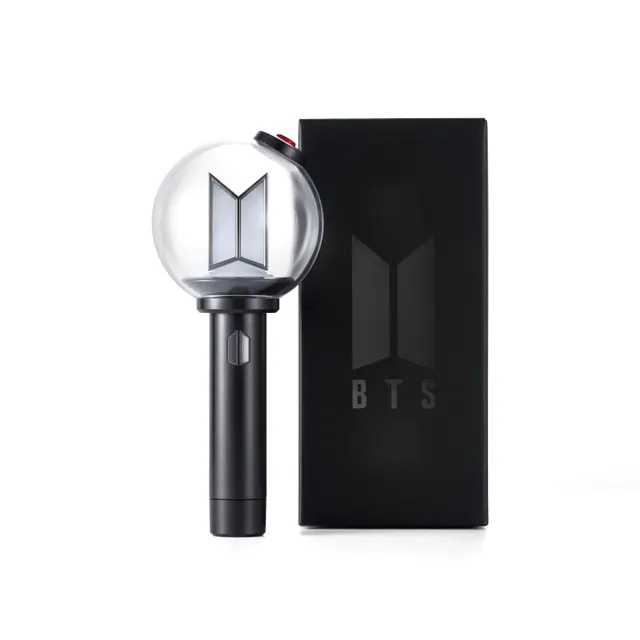
In a K-pop concert hall, thousands of lightsticks change colour at the same instant while the crowd shouts its fanchants (the cheers chanted in rhythm), draw waves and sometimes spell a word across the stands. The audience does not set them: the show's control desk drives them, provided each lightstick was prepared properly before the show began. That preparation comes down to a few steps, but they vary from one group to another, and one slip is enough for yours to stay a single colour all evening. This guide explains how syncing works, the usual steps and what does or does not work outside a concert. Each group publishes its own procedure: when in doubt, that is what counts.
The principle: the venue drives, the lightstick follows
During a concert, the control desk sends a wireless signal to every compatible lightstick in the hall. That signal tells them which colour to show, when, and with which effect: blinking, fading, switching off. Because each lightstick knows the zone it sits in, the desk can colour one block of seats differently from another and build patterns across the whole venue.
For this to work, two conditions must be met. The lightstick must be in the right mode, the one that listens to the venue's signal rather than to your phone, and it must know where you are. Without a location it may follow the effects shared by the whole hall, but it takes no part in zone patterns, or does not respond at all, depending on the system.
The official app and seat pairing
Preparation almost always goes through the official app tied to the lightstick, published by the agency or its contractor. Each group has its own, or a dedicated space inside a shared app: another group's app will not recognise your model. Once the app is installed, you turn on the phone's Bluetooth, switch the lightstick on and start pairing from the relevant screen.
Next comes seat registration. Depending on the system, you enter the section, row and seat number printed on the ticket, or you scan a code on the ticket. The information is transferred into the lightstick, which keeps it in memory. Do this before you arrive: mobile data in a full venue saturates quickly, and the app may need a connection to load the seating plan.
- Install the group's official app and update it.
- Fit fresh batteries, switch the lightstick on, turn on the phone's Bluetooth.
- Pair the lightstick from the app.
- Register the seat: section, row, seat, or ticket code.
- Check that the lightstick has switched to concert mode.

Bluetooth mode or concert mode
Most recent lightsticks can be controlled in two ways. In Bluetooth mode, also called personal mode, your phone picks the colour through the app: handy at home or in a queue. In concert mode, the lightstick ignores the phone and listens only to the control desk's signal. The two do not coexist: as long as the lightstick stays tied to the phone, it may not follow the show.
Switching between modes depends on the model, either from the app or through a button sequence described in the manual. Some lightsticks move to concert mode on their own once the seat is registered. A simple clue: if the lightstick changes colour when you tap the phone screen, it is still in Bluetooth mode.
Batteries and updates: the two causes of failure
Tired batteries are the first reason a lightstick drops out mid-concert. The wireless receiver draws power continuously, and a low charge can be enough to light the bulb without being enough to hold the link. Fit a fresh set on the day, of the type given in the manual, and keep a spare set if the venue allows it.
The second cause is the firmware, the small program inside the lightstick. Before a tour the agency sometimes publishes an update, installed from the app, so the lightstick recognises the new show's effects. Run it a few days ahead, at home, with full batteries and without switching the lightstick off during the process: an interrupted update can leave it unusable until the next one.

Outside a concert: what works, what does not
Away from the venue, the lightstick is still a light in its own right. It turns on and changes colour with its buttons, and in Bluetooth mode the app lets you pick a precise shade or basic effects. Some apps also let the lightstick react to music playing on the phone, or sync it during an official online broadcast when the agency organises one.
Concert mode, on the other hand, does nothing without the control desk's signal. A lightstick registered to a seat stays on standby and may look switched off or frozen: that is not a fault. Seat registration usually holds for a single event, concert or fan meeting, and you have to start again for the next date, even in the same venue.
Successive versions: check compatibility
Across its eras, the big chapters of its career, a group releases several versions of its lightstick, and not all of them can be driven the same way. The electronics change from one version to the next, and the current tour's system may only support the most recent ones. An older version still lights up, but it may sit outside the synchronised effects.
Before a concert, look for the tour's official announcement, which fanbases pass on quickly: it usually states which versions are compatible and which app to use. If your version is not listed, it still works at home and in a collection. On pocabase, a lightstick page shows its version when known, so you can tell which one you own before searching.

Frequently asked questions
Do I need an app to sync my lightstick at a concert?
Almost always. The group's official app is used to pair the lightstick, register the seat and install updates. Each group has its own: another group's app will not recognise your model.
Why do I have to register my seat?
Because the control desk colours the hall by zone. Knowing your section, row and seat, the lightstick knows which part of the pattern to show. Without a seat, it follows at best the effects shared by the whole hall, depending on the system.
My lightstick stopped responding during the concert. What should I do?
Check the batteries first, the leading cause of dropouts. Then make sure it has not stayed in Bluetooth mode, tied to the phone. If the seat was never registered, the app often lets you do it on site, mobile data permitting.
Is an older lightstick version compatible?
It depends on the tour. Each show's system supports certain versions, sometimes only the latest. The tour's official announcement usually lists compatible models and the app to use.
Does the lightstick work at home?
Yes: it turns on with its buttons, and in Bluetooth mode the app lets you choose the colour or effects. Concert mode, however, waits for the control desk's signal and does nothing outside an equipped venue.